Sending a document
Email a document to your client or copy its link, choose recipients, write the message, and what Spacestack checks before anything goes out.
Sending puts the document in your client portal for the people you choose, and freezes it. You can email it from Spacestack or create a link to share yourself.
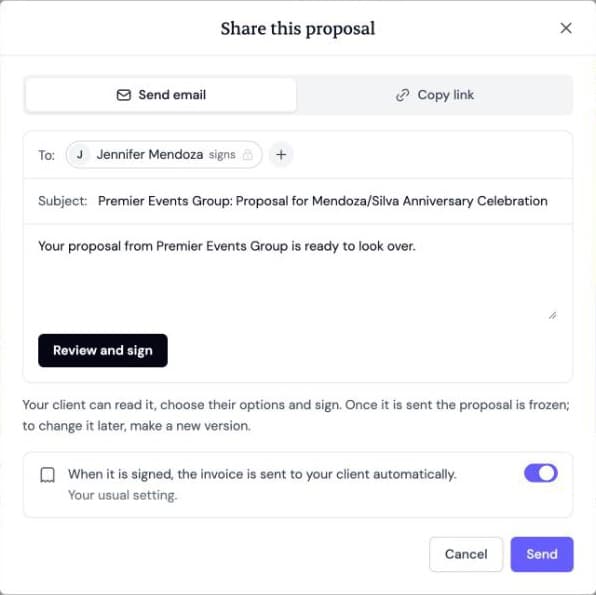
Sending by email
- In the editor, click Send.
- If the document isn't on a booking yet, choose the booking under Booking.
- On the Send email tab, check the To: list. It starts with whoever the document last went to, or the booking's primary contact. Anyone named as a signer is always included, marked “signs”, and can't be removed.
- Click + to add someone: another person on the booking, or Someone else to search your contacts or add someone new with a first name and email.
- Edit the Subject and the message if you like.
- If signing will create an invoice, choose whether it's sent automatically when signed.
- Click Send.
The subject starts as “Your business: Document title” and the message as “Your proposal from Your business is ready to look over.” Each person gets their own email with a button (Review and sign, or View … when there's nothing to sign) and a note on how to sign in to the portal. Replies go to the email address of the person who sent it.
Sending a link instead
On the Copy link tab, click Create link. Nothing is emailed, but the document is frozen the same way. Anyone you give the link to signs in with their email first, so only people who can see the booking in your portal can open it.
Who gets access
- Everyone you email is added to the booking and given access in the client portal.
- People new to Spacestack are added to your contacts.
- Clients get full access to the booking. Vendors and others get shared access: they see this document, not the rest of the booking. The send window tells you which.
What's checked before sending
If something's wrong, nothing is sent and the draft stays as it was. The message tells you what to fix:
| Message | What to do |
|---|---|
| Attach this document to a booking before sending it. | Choose a booking in the send window or the Details tab. |
| Add something to the document before sending it. | The page is empty. Add some blocks. |
| Complete or remove every [Venue to complete: …] prompt before sending. … | A starter template's prompts are still on the page, including team-only ones. Replace or delete them. |
| Add a contact to this booking before sending. This document uses client details, which would be left blank. | Add a contact on the booking. |
| Add at least one line to the pricing before sending. | Add a line to the Pricing or Options block, or remove the block. |
| The payment schedule leaves … unpaid. … | Add a payment set to The balance, or change the amounts. |
| This booking has no primary contact to sign. … | Make someone the primary contact, or choose a named signer in the Signature block. |
| One of the signers is no longer on this booking. … | Choose who signs again in the Signature block. |
| … needs an email address to sign. … | Add an email to that contact. |
| One of the team signers is no longer on your team. … | Choose a current team member. |
| … is down to sign twice. | Remove the duplicate signer. |
| Add someone from the booking to sign, not only your team. | At least one signer must be a client. |
| … has no email address. Add one to their contact first. | A recipient needs an email address. |
| Give each new person a valid email address. | Fix the email of someone you typed in. |
For more detail on each, see Why won't my document send?
After it's sent
- The window confirms who it was emailed to and shows the client link to copy.
- If an email couldn't be sent, it says so: “The email to … didn't go through. Check the address, or send them the link below.” Addresses that bounced or reported spam before are skipped.
- The document's panel shows when it was sent, how many times it's been opened, and who it's waiting on.
- Send again emails the same link to whoever you choose; nothing about the document changes.
Common questions
Can I send a document to someone who isn't on the booking?
Yes. Add them with Someone else. They're added to the booking when it's sent, and get shared access if they aren't a client.
My client says the link doesn't work. Why?
They need to sign in with the email address the document was sent to. Links also stop working if the booking is archived or marked lost, if the document was deleted, or if a newer version replaced it. See Signing in to your venue's client portal.
Can I see whether the client opened it?
Yes. The status changes to Viewed, the panel shows how many times it's been opened, and you're notified the first time (in the app by default).
Was this article helpful?