Creating and sharing BEOs
Build a banquet event order from the booking with events, contacts, timeline, menu and team-only notes, then share it or print it for your team.
A banquet event order (BEO) is the working plan for an event: the schedule, spaces, guest count, food and drink, setup and who's who. In Spacestack it's a document in the Banquet event order category, built from the booking, that you can share with the client for confirmation and print for your kitchen and crew.
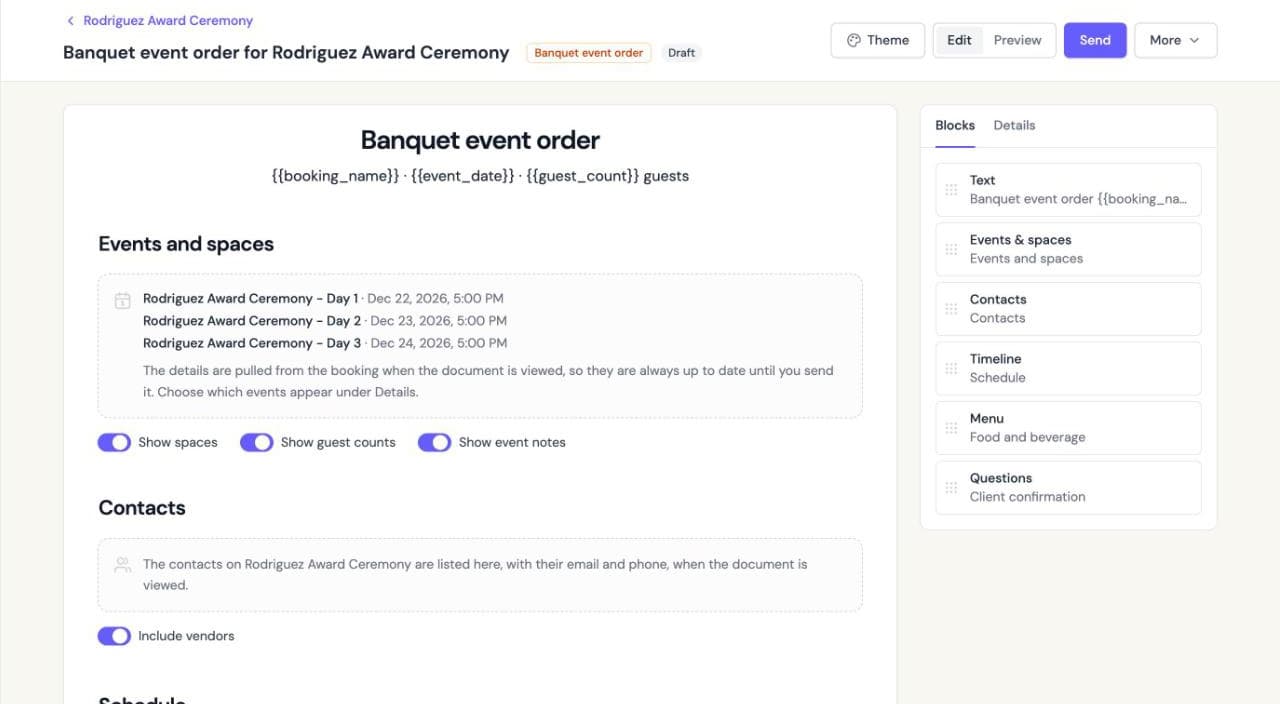
Starting a BEO
- Open the booking's Documents tab and click New document.
- Choose Banquet event order, then Use a template and the Banquet event order starter (or your own BEO template).
- On a booking with several events, open Details and tick the event this BEO is for under Events this is about.
What the starter includes
- A centered heading with the booking name, event date and guest count, filled in by merge fields.
- Events & spaces, with event notes shown, and Contacts, including vendors. Both read the booking live until you send.
- An empty Timeline for the run of show and an empty Menu for food and beverage.
- Prompts for setup and services, client confirmation wording, and team-only Staff notes.
- A Questions block for the client's confirmation.
The prompts start with [Venue to complete: …]. Replace or delete each one; the BEO can't be sent while any remain.
Useful blocks for BEOs
- Timeline: add a time, what happens and notes for each row.
- Menu: sections for courses or stations, each item with notes (dietary, preparation, service) and a quantity.
- Pricing with Show prices turned off: lists what's being served and set up from the booking's items, without money.
- Page break to start the kitchen sheet on a new page when printed.
- Team-only blocks for anything the client shouldn't see. They print in the team copy only.
Sharing with the client
Send it like any document. If it has questions, initials or a signature, the client is asked to respond. If it only shares information, it shows as Shared, is never overdue and gets no reminders. A BEO never expires, never offers to confirm the booking and never creates an invoice.
Printing for your team
- In the editor, open More and choose Print or save as PDF. It prints what the preview shows, so switch to Preview and With team-only notes first if you want the staff notes included.
- On a sent BEO, the print uses the team view, team-only notes included. Use Print / PDF in the panel or Print or save as PDF in More.
- Your browser's print dialog lets you print or save a PDF to send to vendors.
Common questions
Can vendors see the BEO?
If you send it to them, yes. Vendors get shared access in the portal, so they see the documents sent to them, not the rest of the booking. Team-only blocks are never shown.
Does a BEO update when the booking changes?
A draft does. A sent BEO is frozen as it was sent; make a new version to pick up changes.
Can I make one BEO per event?
Yes. Create a BEO for each event and tick that event under Events this is about in Details.
Was this article helpful?