Reminders and due dates
How respond-by dates, overdue and expired documents work, the automatic reminder schedule, and sending a reminder yourself.
Each document can have a respond-by date. Spacestack uses it to show what's late, to stop proposals and contracts being accepted after they lapse, and to time reminders to the people it's waiting on.
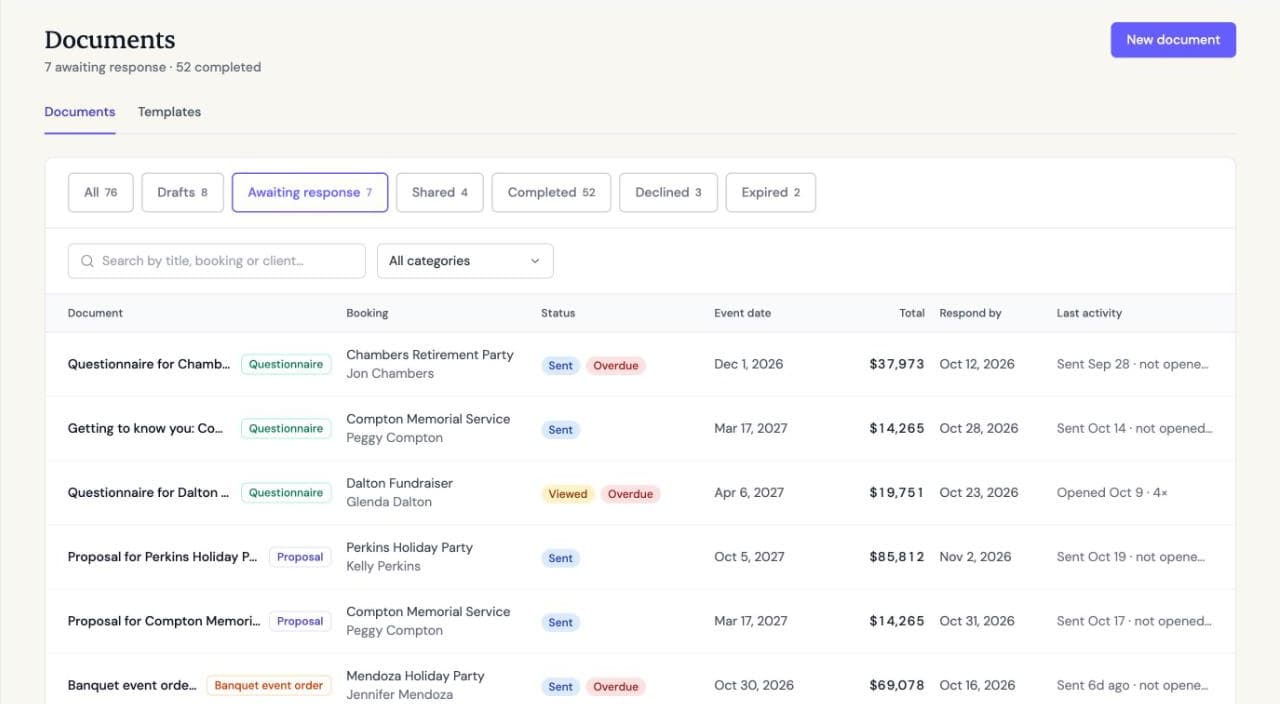
The respond-by date
- Set it under Respond by in the editor's Details tab.
- New proposals and contracts (and categories set to expire) start with today plus your Days to respond, set under Settings, then Documents & payments (14 by default). Others start with none.
- On a sent document you can move it in the panel without a new version, until someone signs.
- The client sees “Please respond by …” on the document and in the email. Use {{due_date}} to put it in your text.
Overdue and expired
| Category setting | Past the respond-by date |
|---|---|
| Expires (Proposal, Contract, and any category with Expires after the respond-by date) | The document expires. The client can no longer accept, choose or answer, and sees that it expired. You see Expired. |
| Doesn't expire (BEO, Questionnaire, Custom) | It shows a red Overdue chip but stays open. |
Documents that only share information (nothing to sign or answer) are never overdue or expired. To revive an expired document, make a new version and send it, or Mark as completed if the client agreed another way.
Automatic reminders
While a document is waiting on the client, Spacestack emails a reminder:
- 3 days after it was sent,
- 7 days after it was sent,
- and 2 days before the respond-by date.
Reminders go to signers who haven't signed yet; on a document without named signers, to everyone it was emailed to. The subject is “Reminder: Document title”, and the email has the same button and link. Each step is sent once per person; if several are due at once they're combined into one email, and none goes within a day of a reminder you sent yourself. Automatic reminders include a link to stop them; anyone who has opted out, or whose address bounced, is skipped.
Turn them off for one document with the Remind automatically switch in the panel. It's on by default.
Reminding someone yourself
- Open the sent document.
- In the Signers or Waiting on section, click Remind under the person.
They get a fresh email with their link. You can remind each person once an hour; the panel shows when they were last reminded. Every reminder is logged on the booking's activity.
Common questions
Can I change the reminder schedule?
Not at the moment. You can turn automatic reminders off per document and remind people yourself instead.
Why didn't my client get a reminder?
They may have opted out of automatic reminders, their address may have bounced, the document may have nothing for them to do, or someone may have reminded them in the last day. See Email delivery, bounces and unsubscribes.
Does extending the respond-by date reopen an expired document?
No. Once expired, it stays expired. Make a new version with the new date.
Was this article helpful?