Editing documents with blocks
Every block you can add to a document, how to reorder and hide blocks from the client, and how to preview as the client or for print.
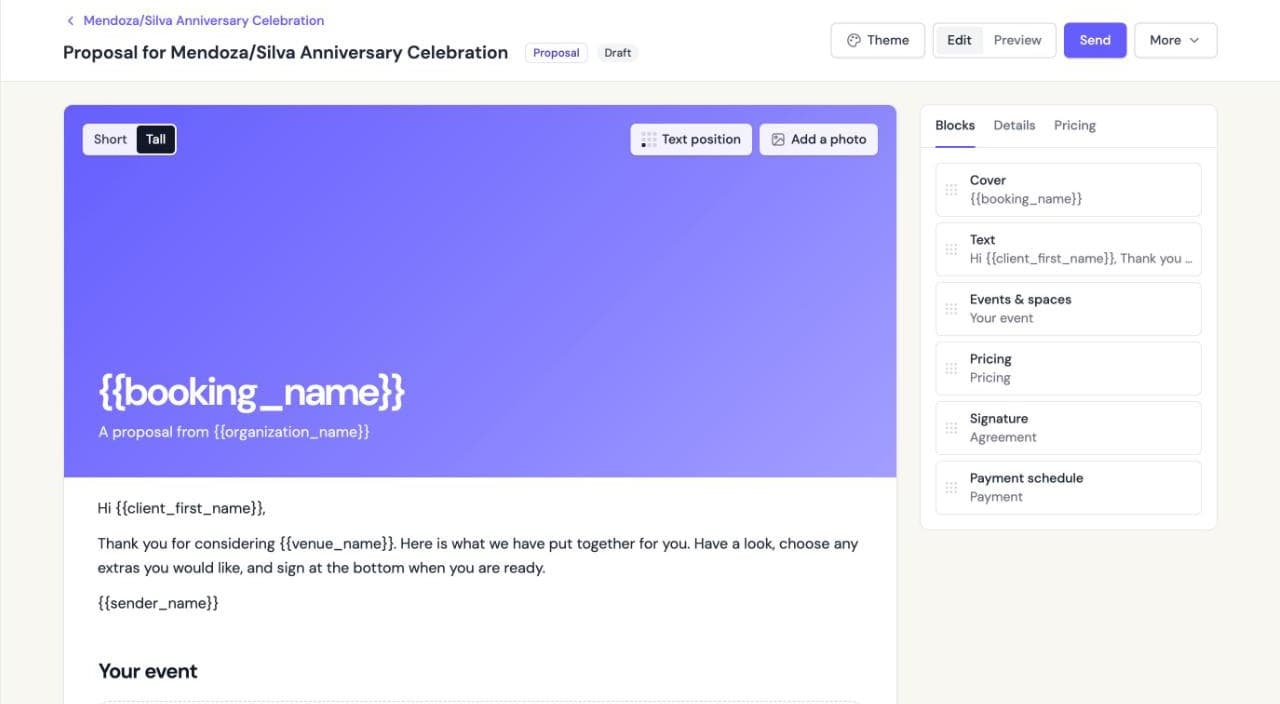
A document is an ordered list of blocks on a page. You edit right on the page, and every change saves automatically (the save status shows next to the title). Drafts and templates can be edited; once a document is sent it's frozen.
Adding blocks
- Click Add a block under the page, or hover between two blocks and click the small + to add one there.
- Pick a block from the menu.
- Fill it in on the page.
A document can have up to 80 blocks. Signature, Pricing, Options and Payment schedule can each appear once; they disappear from the menu once added.
Every block
| Block | What it's for |
|---|---|
| Cover | A large heading and subheading over a photo, or over your accent colour. Short or tall, with nine text positions. |
| Text | Headings, paragraphs, lists and links, with merge fields that fill themselves in. Left or centered. |
| Image | One photo with an optional caption, at Normal, Wide or Full width. |
| Gallery | A grid of up to 12 photos. |
| Divider | A thin line between sections. |
| Page break | Starts a new page when printed. |
| Events & spaces | Dates, times, spaces and guest counts from the booking. Switches for Show spaces, Show guest counts and Show event notes. |
| Contacts | The people on the booking with email and phone, with an Include vendors switch. |
| Timeline | The run of show: up to 60 rows of time, what happens and notes. |
| Menu | Food and drink in sections (courses or stations), each item with notes and a quantity. |
| Pricing | The booking's items, optional add-ons and totals. |
| Options | Two or more choices; the client picks one. |
| Payment schedule | What is due and when. |
| Questions | Questions the client answers on the page, including file uploads. |
| Initials | A statement the client initials. |
| Signature | Your terms, an agree box and typed signatures. |
Photos for Cover, Image, Gallery and option cards can be JPEG, PNG or WebP, up to 8 MB each.
Moving, copying and removing blocks
Hover a block (on a touch screen the toolbar sits above it) to see its toolbar: Move up, Move down, the team-only switch, Duplicate and Delete. Deleting shows an Undo for a few seconds. You can also reorder in the Blocks tab of the panel beside the page: drag a row, or click it to jump to that block.
Team-only blocks
Click the eye icon in a block's toolbar to make it team only. It gets a yellow “Team only. The client does not see this.” strip, and it's left off the client's link and their printout. Use it for kitchen notes on a BEO, internal reminders, or setup instructions. Team-only blocks don't count when Spacestack works out whether the client has anything to sign or answer.
The panel beside the page
- Blocks: the outline, for reordering and jumping around.
- Details: the booking, the category, the respond-by date (or a description, on a template), which events the document is about, and the theme.
- Pricing: shown once the document has a Pricing, Options or Payment schedule block. Tax, service charge, discount, totals and the payment schedule.
On a booking with more than one event, Events this is about lets you tick the events this document covers. Leave them all unticked to include every event. This decides what the Events & spaces block lists, which items Pricing shows, and which event the merge fields describe.
Previewing
- Switch the toggle at the top from Edit to Preview.
- Choose As the client sees it or With team-only notes.
- Choose Web for the portal view or Print for how it lays out on paper.
To print or save a PDF, open More and choose Print or save as PDF. It prints what the preview shows. Other items in More: Duplicate, Save as template (owners and admins), Mark as completed and Delete.
Common questions
Why is my Pricing block missing from the Add a block menu?
A document can have one Pricing block and one Options block. If one is already on the page, it's left out of the menu. The same goes for Signature and Payment schedule.
Can I edit a document after sending it?
No. Sending freezes it. You can still change its title and respond-by date until someone signs. For anything else, use Make a new version.
Does the Events & spaces block update if the booking changes?
While the document is a draft, yes: it reads the booking live. When you send it, the details are copied in as they stand and no longer change.
Was this article helpful?