Signing in to your venue's client portal
How to sign in to your venue's client portal with an emailed link or a 6-digit code, how long they last, and what to do if nothing arrives.
Your venue uses a client portal to share your event details, documents and invoices with you, and to keep your messages in one place. There is no password. You sign in with your email address, and we email you a link and a code.
Signing in
- Open the link in any email from your venue (for example, Review and sign, View and pay or Open your portal). If you are not signed in yet, the portal asks for your email first.
- Enter the email address your venue has for you, then select Email me a sign-in link.
- Check your inbox for an email called Your sign-in link for followed by your venue's name.
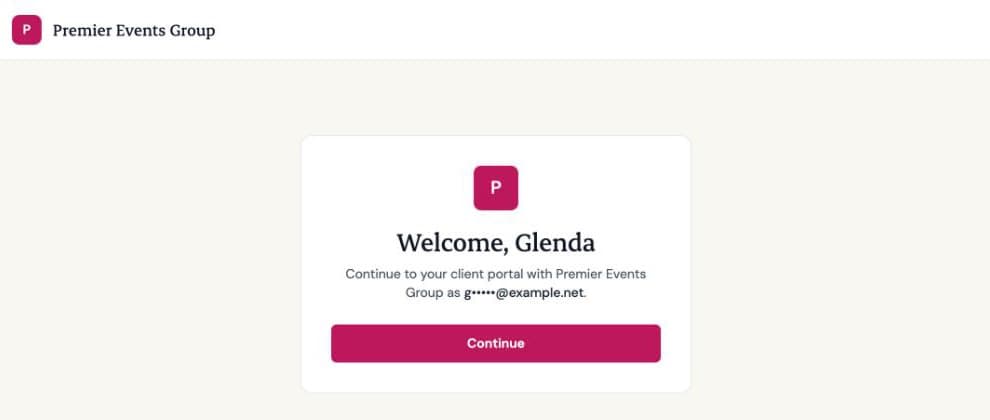
- Select Sign in in that email. On the page that opens, check that the masked email address is yours, then select Continue.
- Or, if you'd rather stay on the page you started from, type the 6-digit code from the email into the box and select Sign in.
If the email doesn't arrive
For your privacy, the sign-in page says the same thing whether or not your address is on file: “If … is on file, we have sent it a sign-in link and a code.” So a missing email usually means one of these:
- Your venue has a different address for you. Try any other email you've used with them, or ask them which one they have.
- There's nothing to show you yet. The portal only opens once your venue has shared a booking or a conversation with you.
- It went to spam or another folder. Search for your venue's name. Our emails come in your venue's name, from an address ending in spacestack.io.
- You asked several times in a row. Only five sign-in emails go out in 15 minutes. Wait a few minutes and use the most recent one.
See Not getting emails from your venue? for more.
What you'll see once you're in
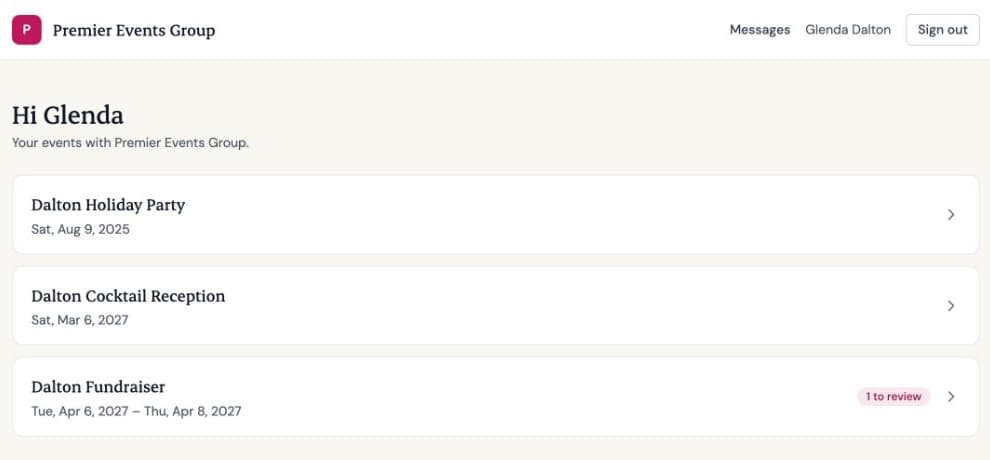
If you have one booking with the venue, you go straight to it. If you have more than one, you'll see a list. Each booking page shows:
- Your booking's name, dates and status: Inquiry, On hold or Confirmed.
- Documents your venue has sent you, with a banner when something is waiting for you to review or sign.
- Messages with your venue, and a New thread link to start one.
- Invoices: what you've paid so far, what's due next, and the payments received.
- Your event (or Your events): dates, times, spaces and guest numbers.
- What's included: the items and total from your latest proposal or contract.
If a planner or vendor is on the booking, they may see only what was sent to them. They'll see a note saying so at the top of the page.
Staying signed in and signing out
You stay signed in on that browser for up to 30 days. To sign out, select Sign out at the top right. Each venue has its own portal, so if you work with two venues that both use it, you sign in to each separately.
Common questions
It says “This isn't shared with you.” What does that mean?
You're signed in as someone who can't see that page, often because the link was meant for another person on the booking or someone else used this computer. Select Sign in as someone else and use the email the link was sent to.
The code says “That code did not work.”
Use the code from the most recent sign-in email, and enter it within 15 minutes. After five wrong tries a code stops working, so request a new one with Send a new link.
It says “Too many tries.”
There have been a lot of sign-in attempts from your connection. Wait a little while, then try again.
Do I need to create an account or a password?
No. Your email address is all you need. Each time you sign in, we email you a fresh link and code.
Was this article helpful?