Sending questionnaires
Ask your client questions in a document: question types, required answers, file uploads and their limits, and when answers lock.
Use a Questionnaire (or a Questions block in any document) to collect details from your client: final guest numbers, dietary needs, vendor contacts, a floor plan. They answer on the page in your portal, and their answers come back to the document.
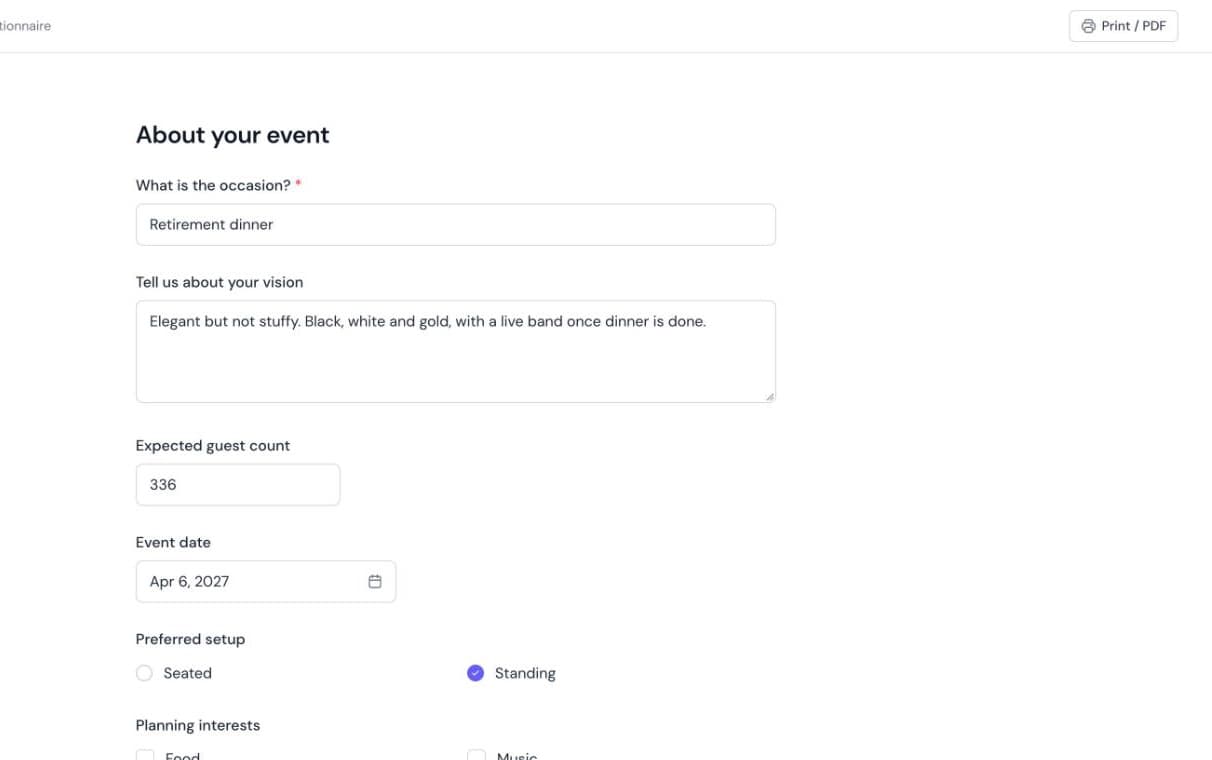
Building the questions
- Create a document in the Questionnaire category (or add a Questions block to any document). A blank questionnaire starts with a prompt and an empty Questions block; delete the prompt once you've written your questions.
- Optionally give the block a heading and a line of introduction.
- Pick a kind of question to start, or click Add a question.
- Type the Question, change the Answer type if needed, and add Help text if useful.
- Turn on Required for questions that must be answered.
A Questions block holds up to 40 questions. You can have several blocks in one document.
Question types
| Type | The client… |
|---|---|
| Short answer | Types a word or a line. |
| Paragraph | Writes a longer answer. |
| Single choice | Picks one from a list they can see all at once. |
| Checklist | Ticks any that apply. |
| Dropdown | Picks one from a menu. |
| Number | Enters a count or an amount. |
| Date | Picks from a calendar. |
| File upload | Attaches documents or photos. |
For choice, checklist and dropdown questions, enter the Choices one per line (up to 30).
File uploads
- Up to 5 files per question, each up to 25 MB.
- Accepted: PDF; JPEG, PNG, GIF, WebP and HEIC images; Word, Excel and PowerPoint files; plain text and CSV.
- Files are stored privately. You open them from the document's Their answers list.
- Files the client removed, or that weren't part of their final answers, are deleted when the document closes.
What the client does
Answers save as the client goes, so they can leave and come back. When they're ready, they click Submit (or Sign and accept if the document also has a signature). Missing required answers are pointed out before it goes through. You can share Answering a questionnaire from your venue with them.
Seeing the answers
Open the document. The panel beside it lists Their answers under each question, with links to any files. You're notified when the client submits.
When answers lock
- Without a signature block, answers lock when the client submits.
- With one, answers lock at the first signature, whoever signs first. Your team can't sign until the client has answered the required questions.
- After that the client sees “The answers went in with the first signature, so they can no longer change.”
Common questions
Can I see answers before the client submits?
Answers are saved as the client types, and the document shows what's been saved so far.
The client needs to change an answer after submitting. What do I do?
Make a new version of the questionnaire and send it. It starts with the questions, not the old answers.
Can I add questions to a proposal?
Yes. A Questions block works in any document.
Was this article helpful?