Creating a booking
Create a booking in Spacestack with only a name, or add the client, venue, first event, spaces and deal details in the same window.
A booking is the record for one piece of business: a wedding, a corporate offsite, a birthday dinner. It holds the people, the events and spaces, the items you are selling, the documents, invoices and payments. You can start one with only a name and fill in the rest as the deal takes shape.
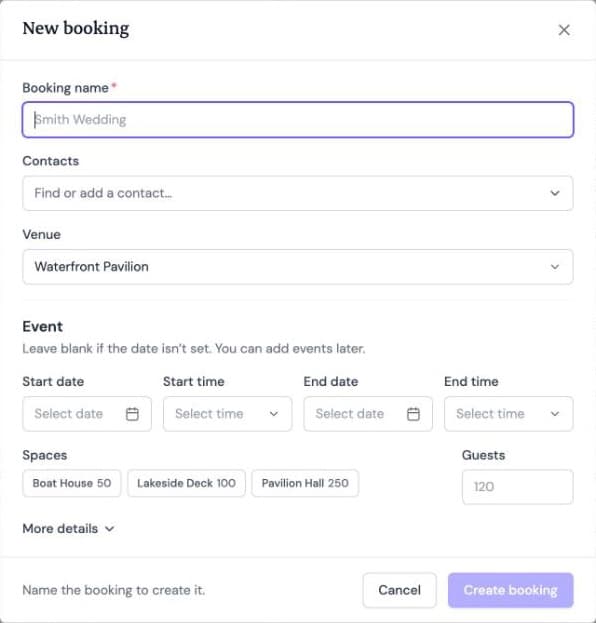
Open the New booking window
Click New booking at the top of the Bookings page or the Calendar. The window opens over the page you are on, so you don't lose your place. Leads from your website form and tours you convert also become bookings; see What happens when an inquiry arrives and Turning a tour into a booking.
Fill in what you know
- Type a Booking name, such as “Smith Wedding”. With one venue, this is the only required field.
- Under Contacts, search for the client. Use the arrow keys and Enter to pick someone, or choose Add “…” as a new contact at the bottom of the list to create them on the spot. Add as many people as you need.
- If your organization has more than one venue, check the Venue. It's required, and starts on the venue you're working in. With one venue, it is set for you.
- Under Event, enter the Start date, Start time, End date and End time if the date is known. Leave the section blank if it isn't.
- Pick the Spaces the event uses and the expected number of Guests. Each space shows its capacity next to its name.
- Open More details to set the Account, the Owner (you, by default), the Status (Lead, by default), the Deal value and the Inquiry date (today, by default).
- Click Create booking. Spacestack opens the new booking's page.
The first event: finish it or clear it
The event is optional, but a half-filled one isn't dropped quietly. While any event field has a value, the window asks you to Finish the event’s dates and times, or clear them. Click Clear next to the Event heading to empty it. An event also needs a venue: if none is chosen, you'll see Choose a venue for the event.
As you pick spaces, Spacestack checks them live. You'll see Free for this time, or an Already held at this time panel listing what holds them. To save anyway, tick Hold these spaces anyway. See How conflict checks prevent double-booking.
After you create it
- Add more events (a rehearsal dinner, a second day) from the booking's Events tab with Add event. See Adding events and spaces to a booking.
- The booking's dates are the span of its events, from the first start to the last end. A booking with no events shows No date yet, and undated bookings sort to the top of the bookings list.
- The booking is placed on your sales pipeline: in the first stage, or in the won or lost stage if you created it as Definite or Lost.
Common questions
Do I need a client or a date to create a booking?
No. Only the booking name is required. You'll need at least one contact before you send the client anything, such as a document that uses client merge fields.
Why can't I click Create booking?
The message next to the button says why: the booking needs a name, a started event needs all four dates and times, an event needs a venue, or the chosen spaces are already held and Hold these spaces anyway isn't ticked.
Can I delete a booking I made by mistake?
Bookings can't be deleted, because their payments, invoices and documents are records. Archive it instead. See Archiving and restoring bookings.
Was this article helpful?