A tour of the booking page
What everything on a Spacestack booking page does: the header, status, pipeline bar, the side cards and each tab from Events to Activity.
Every booking has one page that holds the whole deal. Open it from the Bookings list, the pipeline board, the calendar or a link anywhere in Spacestack. This article walks through it from top to bottom.
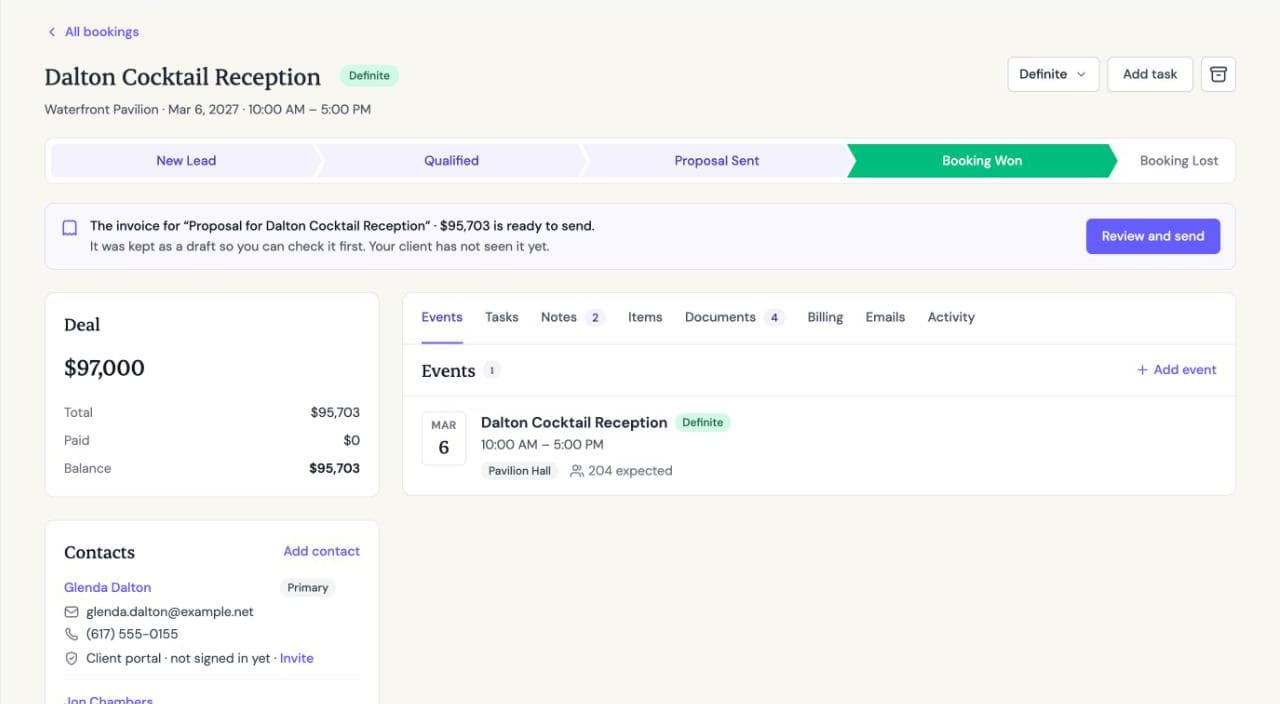
The header
- All bookings takes you back to the list, with your filters as you left them.
- The booking name is editable: click it to rename the booking.
- Next to the name is the status badge (Lead, Tentative, Definite or Lost), and an Archived badge if the booking is archived.
- Under the name: the venue and the booking's dates, which are the span of its events. With no events yet, it says No date yet.
- On the right: the Booking status dropdown, Add task, and the archive button.
The pipeline bar
Below the header is your sales pipeline, with the booking's current stage highlighted. Click any stage to move the booking there. The lost stage sits apart on the right. Moving to the won stage makes the booking Definite and moving to the lost stage makes it Lost. See Using the sales pipeline.
Two prompts can appear under it. When a client signs a proposal or contract, Spacestack asks Mark the booking as Definite? with Mark as Definite and Not now. It never changes the status by itself. And when a signed agreement's invoice was kept as a draft, a prompt reminds you it's ready to send.
The cards on the side
| Card | What it shows |
|---|---|
| Deal | The deal value (click to edit), then Total from the booking's items, Paid and Balance. A notice links to the next payment due, in red when it's overdue. |
| Contacts | The people on the booking, with the primary contact marked Primary. Add or remove people and manage their portal access here. |
| Tours | The booking's tours, soonest first, with their time, guide and status. Click one to preview it. Schedule tour starts a tour for this booking, with its primary contact and venue filled in. |
| Account | The company or household the booking is for. Invoices are made out to it. Change or Remove it here. |
| Client portal | The booking's portal link to copy, and a button to email someone a link that signs them in. |
| Details | Venue, Inquiry date and Owner (both editable in place), and when and by whom it was Created. |
| Your custom field groups | One card per group of custom fields for bookings, edited in place. |
| Website inquiry | For leads from your inquiry form: the answers, the form name, the website and any UTM tags. |
The tabs
| Tab | What it's for |
|---|---|
| Events | The ceremony, reception or meeting this booking is for: dates, spaces, guests and status. See Adding events and spaces. |
| Tasks | Follow-ups for this booking. Add task creates one already linked to it. |
| Notes | Internal notes for your team. |
| Items | What the booking is buying, which proposals, contracts and BEOs show. See The Items tab. |
| Documents | Proposals, contracts, BEOs and questionnaires for this booking. New document starts one with the booking's details filled in. |
| Billing | Invoices, payments and what's owed. New invoice and Record payment live here. |
| Emails | Conversations with the client. New thread sends an email; replies come back here. |
| Activity | A timeline of everything that happened on the booking. |
Tabs show a count when there's something in them, such as the number of documents or unread email conversations. On a phone, the tabs come before the cards.
Common questions
Can I edit the booking's dates in the header?
No. A booking's dates come from its events. Edit or add events on the Events tab and the header updates.
What's the difference between Deal value and Total?
The deal value is your own estimate of what the booking is worth, typed in by hand. The total is worked out from the booking's items, tax, service charge and discount.
Was this article helpful?