Adding events and spaces to a booking
Add events to a Spacestack booking, including multi-day events, choose spaces, record expected, guaranteed and actual guests, and set event statuses.
Events are what happens on the floor: a ceremony, a cocktail hour, a reception, a two-day conference. A booking can have as many as you need. Events hold spaces, appear on the calendar, and set the booking's dates.
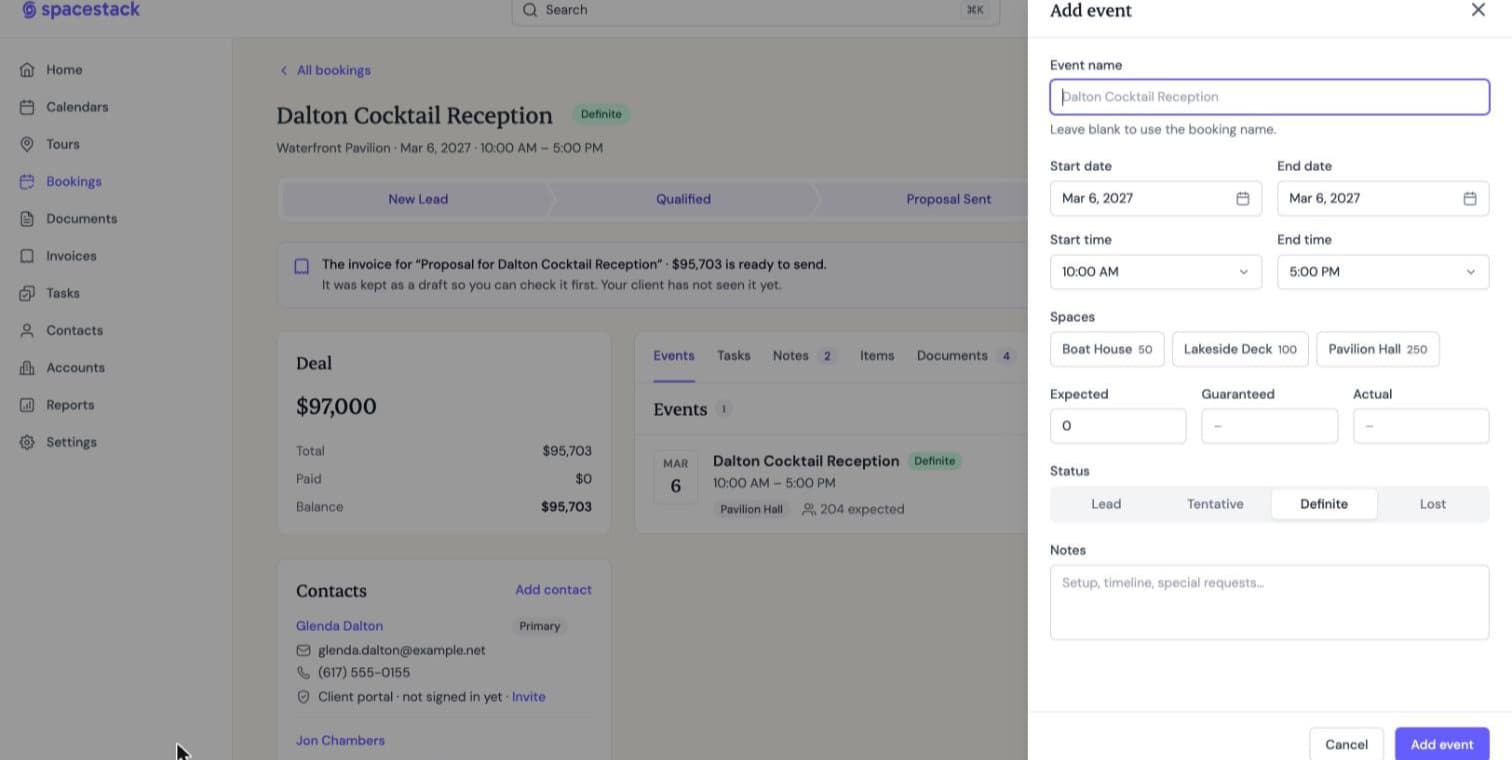
Add an event
- Open the booking and stay on the Events tab.
- Click Add event. A panel opens on the right.
- Give it an Event name, or leave it blank to use the booking name.
- Set the Start date, End date, Start time and End time. New events start with the booking's current dates filled in.
- Click the Spaces it uses. Each shows its capacity.
- Enter guest numbers under Expected, Guaranteed and Actual.
- Choose a Status: Lead, Tentative, Definite or Lost. It starts at the booking's status.
- Add Notes for setup, timeline or special requests.
- Click Add event.
Multi-day events
Set an End date after the start date. The start time is on the first day and the end time on the last day, and the event holds its spaces for the whole stretch in between. The event's card shows “through” and the end date. For separate sessions on each day (a 9 to 5 conference on two days, say), add one event per day instead, so the spaces are free overnight.
Guest counts
| Field | Use it for |
|---|---|
| Expected | Your working estimate. Shown on the event card and calendar. |
| Guaranteed | The number the client commits to. Shown on the card when set, and used for guest counts on the Items tab. |
| Actual | Who turned up, recorded after the event. |
Event statuses
An event's status works like a booking's: Lead, Tentative and Definite hold spaces, Lost doesn't. Give an event its own status when part of a booking is firmer than the rest, such as a confirmed wedding day with a tentative brunch the next morning. When you change the booking's status, events that matched it move along and the ones you set apart stay. See Booking statuses.
Edit or remove an event
- Click anywhere on an event to edit it, then Save changes.
- To remove one, hover over it, click the trash icon, then Remove event. Its spaces are released.
- An event with a sent or signed document about it (a BEO, for example) can't be removed. Mark it Lost instead.
As you choose spaces and times, Spacestack checks availability live and shows Selected spaces are free for this time or what already holds them. See How conflict checks prevent double-booking.
Common questions
Can an event have no spaces?
Yes. It shows on the calendar and sets the booking's dates, but it doesn't hold anything, so it never conflicts with other events.
Why does saving say the end time must be after the start time?
On a one-day event the end time has to be later than the start time. For an event that runs past midnight, set the end date to the next day.
Can an event use spaces from two venues?
No. All of an event's spaces must belong to the booking's venue.
Was this article helpful?