Using the calendar
Find your way around the Spacestack calendar: day, week, month and list views, the venue selector, status colors, tours, and event previews.
The Calendar shows every event and tour in one place. It shows events, not bookings: a booking appears once for each of its events, and a booking with no events yet isn't on the calendar.
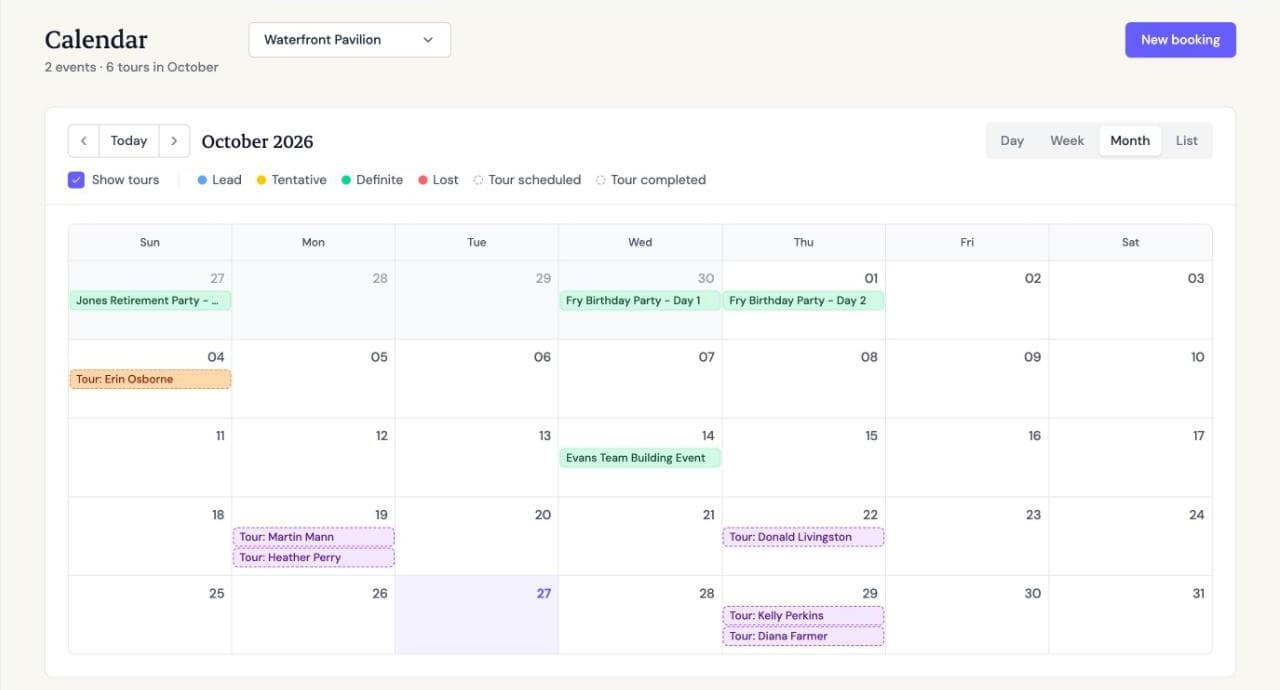
Views and moving around
- Switch between Day, Week, Month and List at the top right. On a phone the calendar opens on List.
- Use the arrows to go back or forward, and Today to come back.
- Day and week views show each event's spaces under its name. Month view shows names only; when a day is full, click the “+ more” link to see the rest.
- The summary under the page title counts the month's events and tours, like “12 events · 3 tours in June”.
- Today and the current-time line follow your venue's time zone.
The address bar keeps the view and date, so you can bookmark a view or send a teammate a link to a particular week.
Colors and the legend
| Looks like | Means |
|---|---|
| Solid blue | Lead event |
| Solid yellow | Tentative event |
| Solid green | Definite event |
| Solid red | Lost event (it doesn't hold its spaces) |
| Dashed purple outline | Scheduled tour |
| Dashed gray outline | Completed tour |
| Dashed red or orange outline | Cancelled or no-show tour |
| Solid gray | An event from your own Google Calendar (only you see it) |
Each event's color follows its own status, which can differ from its booking's. Events from archived bookings aren't shown. Hover over an item to see its name and status.
Show or hide tours
Untick Show tours under the toolbar to see only events. If you've connected Google Calendar, Show Google events hides or shows yours the same way. Your browser remembers both choices next time.
Choose a venue
If your organization has more than one venue, use the venue selector next to the page title to see one venue or All venues. The choice also applies to your bookings and tours lists.
Preview an event or tour
Click anything on the calendar to open a preview on the right.
- An event shows its status, date and time, venue and spaces, and guests expected, then the booking: its name, account, money (total, paid and balance, or the deal value) and the people on it. Click Open booking to go to it.
- A tour shows its status, type, time, venue and spaces, guide, the guest's email and phone, and internal notes. On a scheduled tour, click Mark completed or Edit. Open tour opens the tour page.
- A Google event opens in Google Calendar.
Adding to the calendar
Click New booking at the top right to create a booking with its first event. To add another event to an existing booking, open the booking and use Add event on its Events tab. Tours are scheduled from Tours.
Common questions
Why isn't my booking on the calendar?
It has no events yet, it's archived, or it's at a different venue from the one selected. Add an event from the booking's Events tab.
Can I drag events to reschedule them?
No. Open the booking and edit the event's dates and times on its Events tab, so the conflict check runs.
Does the calendar sync with Google Calendar?
Yes, for each person who connects it: your events and tours go to your Google Calendar, and your Google events can show here. See Connecting Google Calendar.
Was this article helpful?