Creating and sending an invoice
Start an invoice for extras, edit a draft, choose who it's billed to and send it. What sending does: numbering, locking, emails and client portal access.
Most invoices are made for you when a client signs a proposal or contract. You create one by hand for extras or changes after signing, and you send any draft yourself when automatic sending is off.
Start an invoice
- Open the booking and go to its Billing tab.
- Click New invoice. A draft opens, titled “Additional items: …” and filled with the booking's items that haven't been invoiced yet.
Edit the draft
A draft saves as you type. Use Preview at the top to see it as the client will.
- Invoice: the Title and Billed to, one of the people on the booking. Invoice emails, reminders and receipts go to this person.
- Items: Add from booking, Add from catalog, or Add a line of your own. Each line has a quantity, price and a Taxable box. Up to 200 lines.
- Charges: discount, service charge and tax, with your own labels. They start from the signed document, or for a new invoice from the booking's pricing. The booking's discount isn't taken off again on an invoice for extras.
- Payment schedule: between 1 and 12 payments, each with a label, amount and due date. Tick Due as soon as it is sent for a deposit. A payment with no date is due the day it's sent. A single payment always covers the whole total.
- Notes and terms: these start from your defaults in Settings → Invoices.
Send it
- Click Send at the top right.
- In Send this invoice, tick who it goes to. Only people on the booking with an email address are listed.
- Add an optional Message.
- Click Send invoice.
Sending gives the invoice the next number, locks it, and emails each person a link to view and pay it in your client portal. A payment with no date, or one marked due when sent, becomes due today.
Who it goes to by default
- The person it's billed to.
- If nobody is set, the clients who signed (or were asked to sign) the document it bills.
- If neither, the booking's primary contact.
Everyone you send it to is given access to the booking in the client portal, if they didn't have it already. A client contact sees the whole booking; a vendor or anyone else sees only what's sent to them.
Sent but not emailed
An invoice sent automatically on signing is still issued if nobody it would go to has an email address; the booking's activity says it was issued. If an email doesn't go through (the address bounced before, or sending failed), you see “The email to … didn't go through: check the address, or share the link.” Fix the address, then click Send again, or use Copy client link in the ⋯ menu and share it yourself.
After it's sent
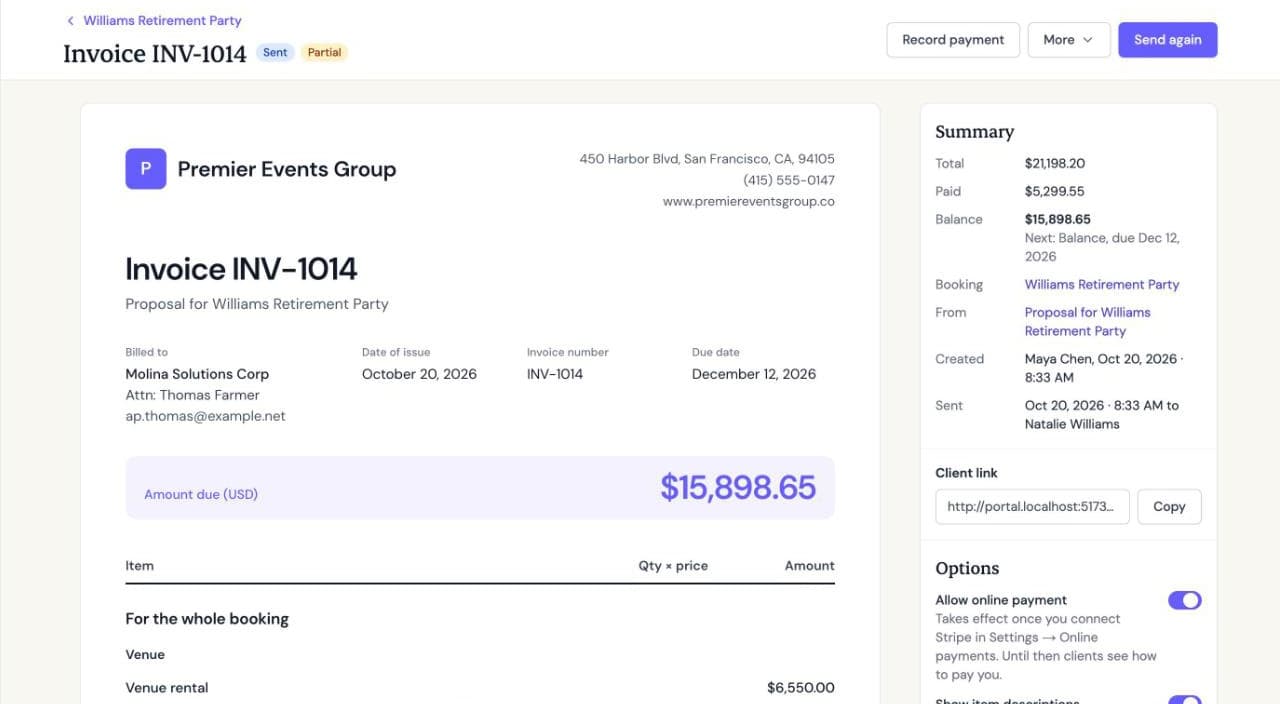
- Send again emails the same invoice and link.
- The side panel shows the total, what's paid, the balance and the next payment due, plus the Client link.
- The ⋯ menu has Print or save as PDF, Copy client link, Remind now and, for owners and admins, Edit (creates a revised invoice) and Void.
Common questions
Can I change an invoice after sending it?
Not directly. Owners and admins can start a revised copy; see Correcting or voiding an invoice.
Why can't I click Send invoice?
Choose at least one person. If the window says “Nobody on this booking has an email address,” add an email to a contact first. Sending also needs at least one line, a total above zero, and payments that add up to the total.
Can I delete a draft?
Yes. Use Delete draft in the ⋯ menu. It hasn't been sent, so your client won't notice.
Was this article helpful?