What your clients see in the client portal
How clients sign in to your client portal with an email link or code, and what they see for each booking: documents, invoices, payments, events and messages.
The client portal is where your clients see their bookings with you: documents to read and sign, invoices to pay, their event details and their conversations with your team. It carries your venue's name, logo and accent color, and lives at its own address, such as portal.spacestack.io/your-venue.
How clients sign in
There are no passwords. Clients get to the portal from the links in your emails (documents, invoices, invitations, messages). If they aren't signed in, they're asked for their email address.
- The client enters the email address you have on file for them and clicks Email me a sign-in link.
- They get an email with a Sign in button and a 6-digit code. Both work once, for 15 minutes.
- They click the link and press Continue, or type the code on the sign-in page.
- They land on the page they were trying to open.
A client stays signed in on that browser for 30 days, or until they click Sign out. The sign-in page says the same thing whether or not an address is known, so it can't be used to find out who your clients are.
What they see
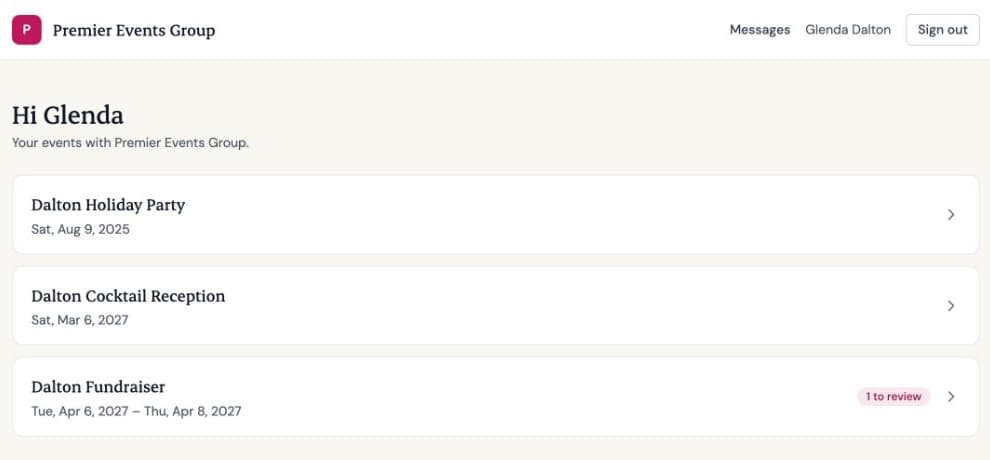
A client with one booking goes straight to it. With several, they see a list with dates and how many documents are waiting for them. Each booking page shows:
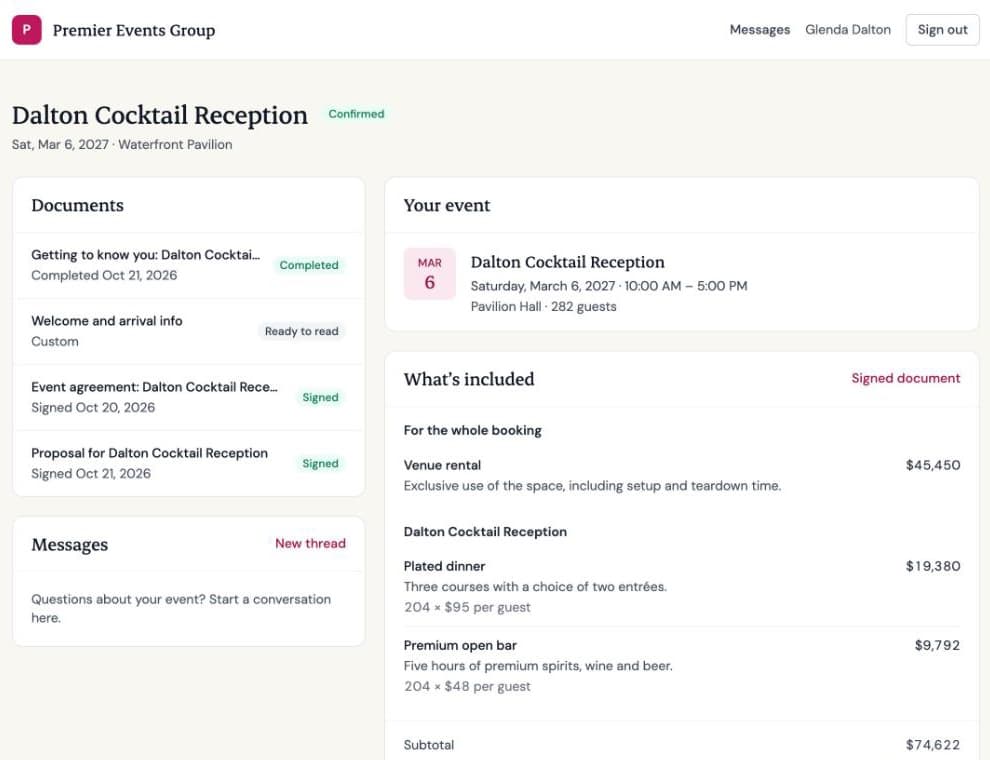
| Section | What's in it |
|---|---|
| Header | The booking name, its status (Inquiry, On hold or Confirmed), dates and venue. |
| Waiting banner | Documents waiting for them, with a Review and sign button. |
| Documents | Everything you've sent, with its status, such as Waiting for you, Signed or Overdue. Drafts and replaced versions are hidden. |
| Messages | Their conversations about this booking, and New thread. |
| Invoices | Paid so far out of the total, each invoice with what's due next, how to pay, and payments received. |
| Your event | Each event's date, times, spaces and guest count. |
| What's included | The items and totals from the latest signed document with pricing, or the latest one waiting for their signature. |
Opening an invoice shows the full invoice with its payment schedule. If you've connected Stripe, each payment still owed has a Pay button; otherwise they see your payment instructions. Clients can print or save documents and invoices as PDFs.
What they don't see
- Bookings marked lost or archived.
- Draft documents and invoices, and team-only blocks in documents.
- Notes, tasks, your activity timeline, or anything about other clients.
- With shared access, anything not sent to them.
Your portal's address
Owners and admins can change the address under Settings → Client portal (it opens the Client portal section of Organization settings). It needs at least 3 characters: lowercase letters, numbers and hyphens. Use Open your portal's sign-in page to see it as a client would.
Common questions
Can I see the portal as my client does?
You can open your portal's sign-in page from Settings → Client portal, but signing in needs the email of a contact with something to see. You can also preview documents as the client from the document editor.
My client says the link expired. What now?
Sign-in links and codes last 15 minutes and work once. They can enter their email on the sign-in page to get a new one. See Signing in to your venue's client portal to send them.
Why does my client see “This isn't shared with you”?
They're signed in as someone who doesn't have access to that page, often on a shared computer. The page offers Sign in as someone else. Otherwise, check their portal access on the booking.
Was this article helpful?