Connecting Stripe to take card payments
Connect your own Stripe account in Settings → Online payments so clients can pay invoices by card or US bank transfer, with the money going straight to you.
Connect your venue's own Stripe account and clients can pay their invoices online. Each payment is made on your Stripe account, so the money goes to you and on to your bank. Spacestack never holds it and adds no fees; Stripe charges its usual rates.
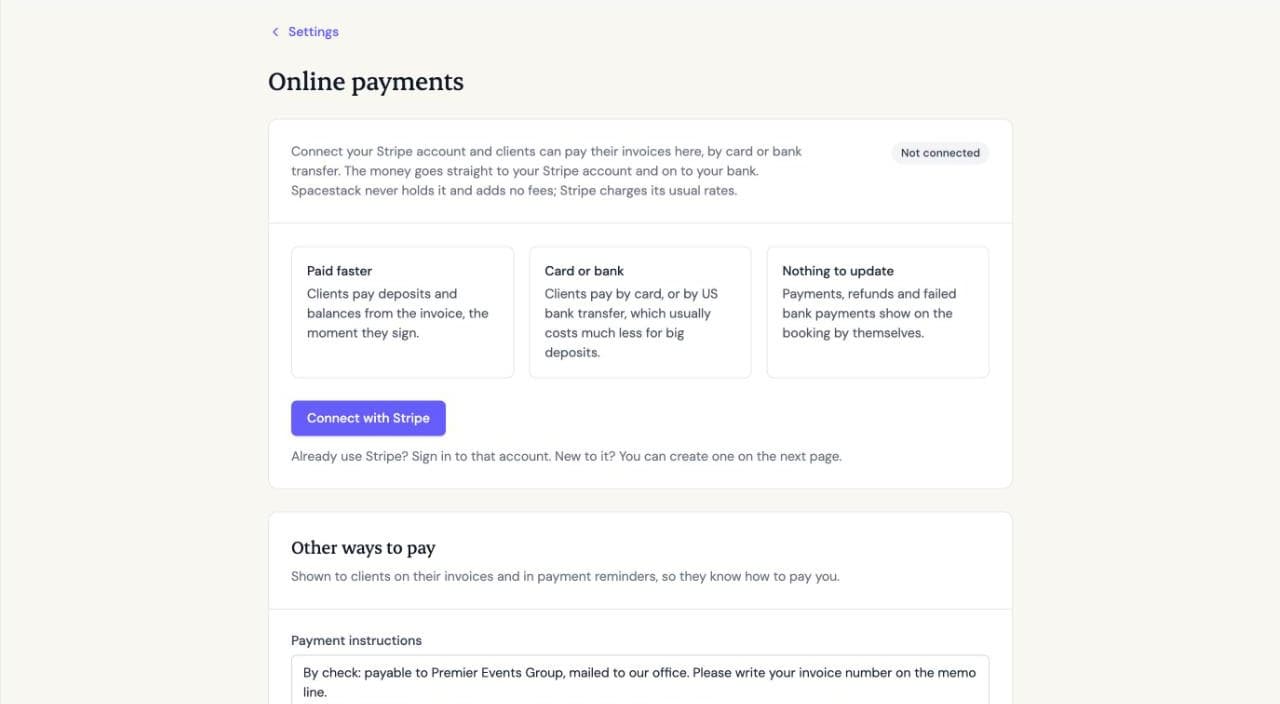
Connect your account
- Open Settings, then Online payments.
- Click Connect with Stripe.
- On Stripe's page, sign in to your existing Stripe account, or create one.
- Agree to connect. Stripe sends you back to Spacestack, which shows “Stripe is connected. Clients can now pay your invoices online.”
If Stripe needs more details
A new Stripe account usually needs some details before it can take payments. Until then the page shows Setup unfinished and lists what Stripe is asking for, such as a photo of your ID, your business tax ID or a bank account for payouts, with a deadline if Stripe set one.
- Click Add them in Stripe (or Add it in Stripe) to open your Stripe Dashboard and fill in what it asks for.
- Come back and click Check again.
- If it says “Stripe is checking your details,” wait a few minutes and check again.
Once connected, the page shows your Stripe account, whether it can take payments, whether payouts to your bank are on, when it was connected and by whom, and its currency.
What clients can pay with
- Card, on any invoice.
- US bank account (ACH), on invoices in US dollars. A bank payment shows as Processing until it clears, usually in a few business days, and it can still fail.
Clients pay from the invoice in their client portal: each payment still owed has its own Pay button, which opens Stripe's secure checkout. A checkout left open expires after an hour.
Fees, payouts, refunds and disputes
You are the merchant. Stripe's fees come out of your Stripe balance, payouts go from Stripe to your bank on Stripe's schedule, and you handle refunds and disputes in your Stripe Dashboard. Refunds and disputes then show on the booking in Spacestack by themselves. See Refunds, disputes and overpayments.
Other ways to pay
Below the Stripe section, Other ways to pay has two fields that show on invoices and in payment reminders:
- Payment instructions: check payee, wire details, a reference to use.
- Your own payment page (optional): a Square, PayPal or other payment link. Without Stripe connected it shows as a Pay online button. With Stripe connected, it only shows where online payment is turned off for an invoice.
You can switch online payment off for a single invoice with its Allow online payment option, for example for a large balance you want by check or wire.
Disconnecting
Click Disconnect at the bottom of the page. Clients can no longer pay online; invoices and reminders show your payment instructions instead. Payments already made stay on their bookings, and your Stripe account itself isn't affected.
Common questions
Does Spacestack take a cut of my payments?
No. Spacestack adds no fees. Stripe charges its usual rates on your account.
Can I connect a Stripe account I already use?
Yes. Sign in to it on Stripe's page. A Stripe account can only be connected to one Spacestack workspace at a time; if it's already connected elsewhere you'll see “That Stripe account is already connected to another Spacestack workspace.”
Why does it say the connection took too long?
The connection has to be finished within 30 minutes of clicking Connect with Stripe. Start again from Settings → Online payments.
Can clients pay with buy now, pay later?
No. Checkout offers card, and US bank account on US-dollar invoices.
Was this article helpful?