Managing tasks
Create, assign and complete tasks in Spacestack: due dates, statuses, priorities, subtasks, comments, attachments, the Tasks page and deleting.
Tasks are your team's to-do list: call back a lead, chase a signed contract, confirm the final guest count. A task can stand alone or be linked to the booking, contact, account or tour it's about, so it shows up on that record too.
Creating a task
- Click New task on the Tasks page, or on the Tasks tab of a booking, contact or account. On a tour's page, use the add button next to Tasks.
- Type a task name.
- Optionally choose an Assignee, a Due date, a Status and a Priority, and link a Booking.
- Add a Description if it helps: details, links or next steps.
- Click Create task.
A task created from a contact, account or tour is linked to it automatically and shows it under Linked to. You can link any task to a booking from the Booking field; Open booking takes you there.
Assigning and due dates
Click Assignee and type a name or email to find a teammate (arrow keys and Enter work too). The person you assign is notified, unless you assigned yourself. Pick a Due date from the calendar, or clear it to leave the task undated. Overdue tasks show in red.
Statuses, priorities and completing
- New tasks start in your default status (Not started unless you've changed it) and at your default priority (Medium).
- Click Mark complete at the top of the task, or the circle next to it in any list. That moves it to your completing status (Done). Click again to reopen it, which moves it back to the default status.
- Choosing a status that completes tasks also marks it complete.
- A task can have no priority. The default priority isn't shown as a pill in lists, so other priorities stand out.
Owners and admins can rename and recolor these, add more and choose which ones complete a task. See Customizing task statuses and priorities.
Subtasks, attachments and comments
- Subtasks: type in Add subtask and press Enter. Each subtask is its own task with an assignee and due date, and it takes its parent's linked record. Lists show only top-level tasks, with a subtask count like 2/5.
- Attachments: click Add file, or drop files anywhere on the open task. Each file can be up to 25 MB. Program files (such as .exe) aren't allowed.
- Comments: write in Add a comment or @mention a teammate at the bottom and press Cmd+Enter (Ctrl+Enter on Windows) or the arrow button. Type @ to mention someone; see Notes and @mentions.
- All activity shows the task's history: who created it, changed its status, assignee or due date, completed it and attached files.
You can delete your own comments. To share a task, click the link icon (Copy task link); the link opens the task on the Tasks page.
The Tasks page
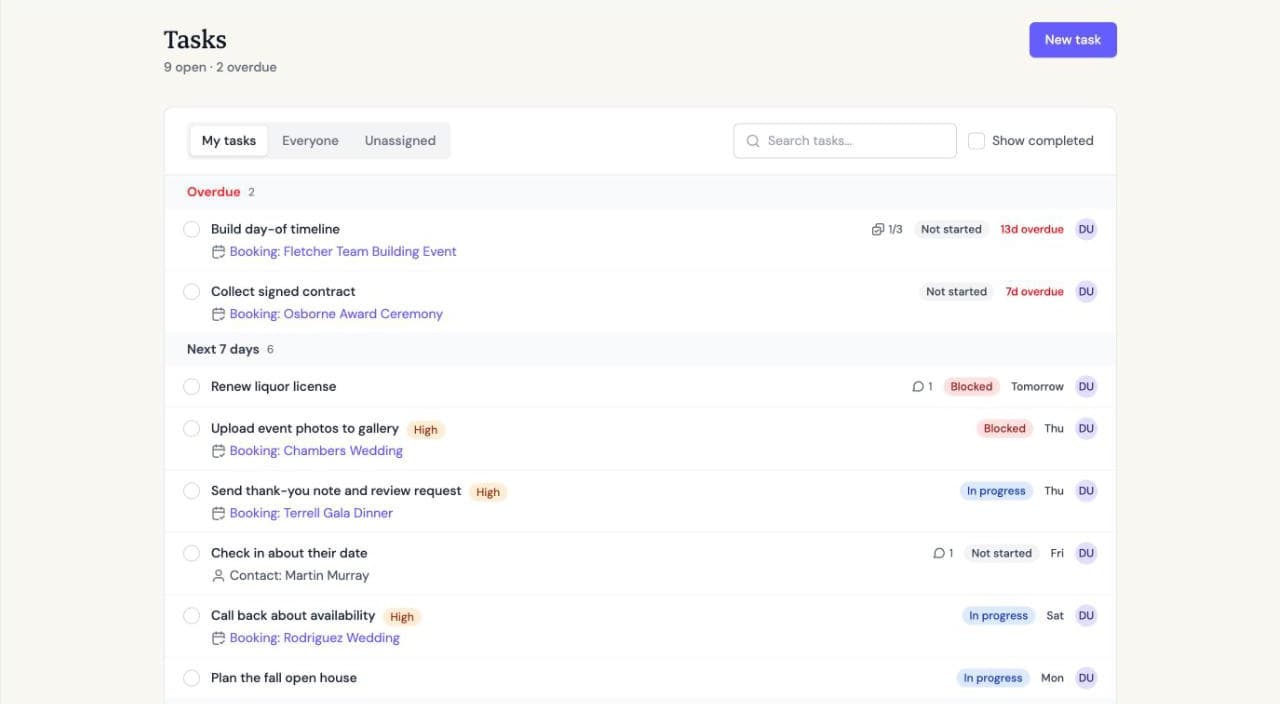
Tasks in the sidebar has three tabs: My tasks (assigned to you), Everyone and Unassigned. Tasks are grouped under Overdue, Today, Next 7 days, Later and No due date. Tick Show completed to add a Completed group, and use Search tasks… to search titles and descriptions. The line under the page title counts open, overdue and due-today tasks for the tab you're on, and how many were done this week.
The page shows up to 200 tasks at a time. If there are more, it says so; search or switch tabs to narrow the list.
Deleting a task
Click the trash icon (Delete task). The task and its subtasks go to the trash and disappear from every list. Click Undo in the message that appears, or open the task again and click Undelete. A deleted task is removed for good after 30 days.
Common questions
How do I find a task I deleted?
Deleted tasks don't appear in lists. Open the activity timeline of the record it was linked to (or the dashboard's Recent activity) and click the task from its “deleted” entry, then click Undelete. This works for 30 days.
Can viewers use tasks?
Viewers can see every task but can't create, edit, complete or delete them.
Do I get reminded when a task is due?
Spacestack sends a daily notice for each task assigned to you that's due today or overdue. It's in-app only to start with; you can turn on email in Settings → Notifications.
Was this article helpful?