Finding your way around
A quick tour of the Spacestack app: the sidebar, Home, global search and its keyboard shortcut, notifications, the venue switcher and your profile menu.
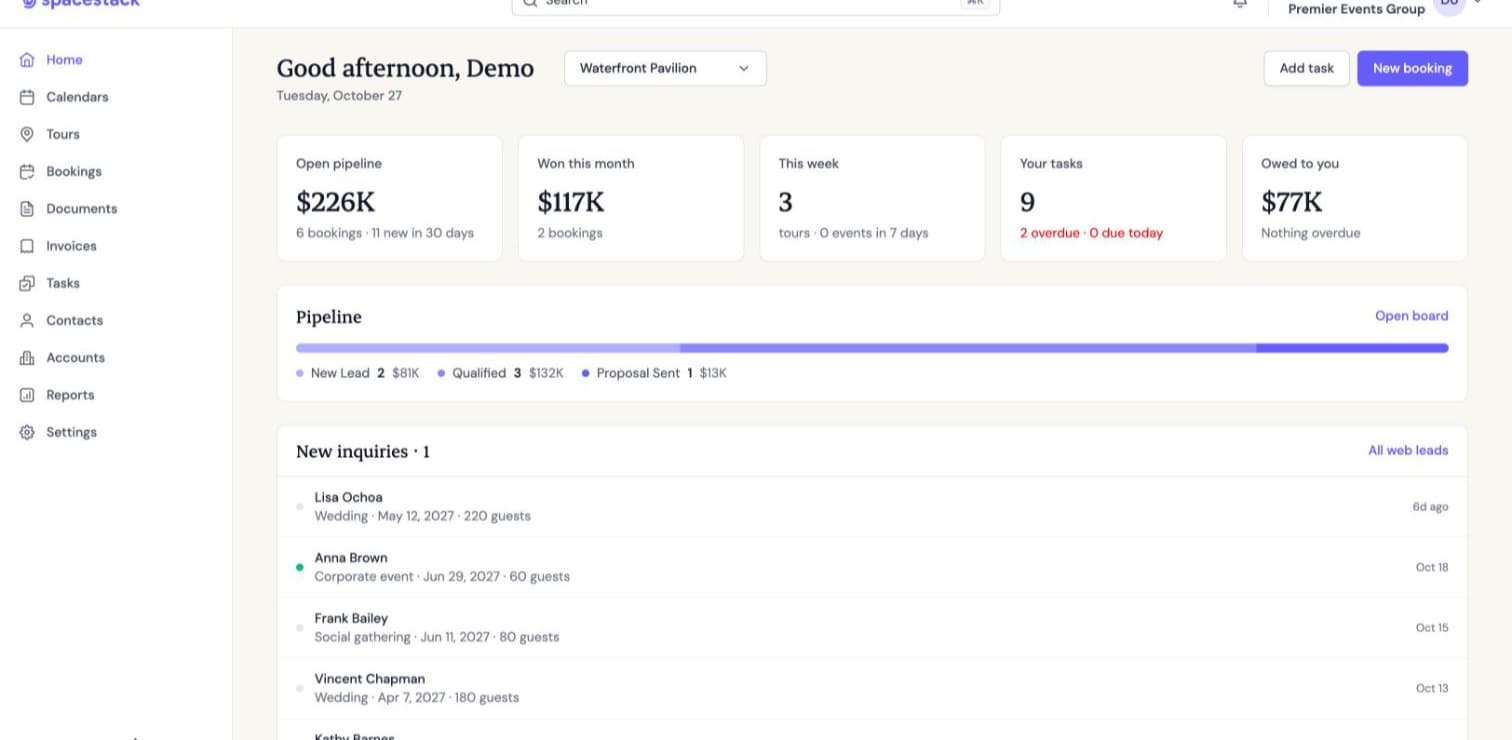
Spacestack has the same layout on every page: a sidebar on the left, a header across the top with search, notifications and your profile menu, and the page itself in the middle.
The sidebar
The sidebar lists every area: Home, Calendars, Tours, Bookings, Documents, Invoices, Tasks, Contacts, Accounts, Reports and Settings. On a phone, tap the menu button at the top left to open it.
Home
Home greets you and shows today's picture: headline numbers (open pipeline, won this month, this week's tours and events, your tasks, money owed to you), your pipeline, new website inquiries, upcoming tours and events, your tasks and recent activity. The New booking and Add task buttons are at the top. See Reading your dashboard.
Search
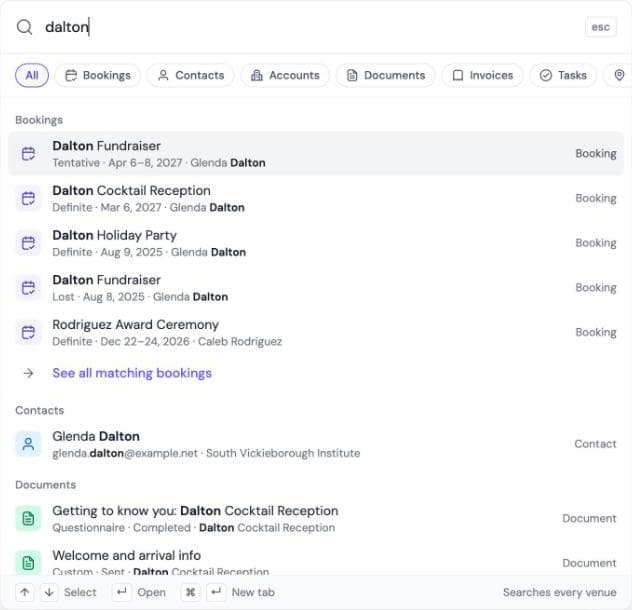
Select Search in the header, or press ⌘K on a Mac, Ctrl K on Windows, or / anywhere you aren't typing. Search covers bookings, contacts, accounts, documents, invoices, tasks, tours and conversations across every venue.
- Before you type, you see your recent records and shortcuts like New booking and Schedule a tour.
- Type a page or setting name, like “team” or “catalog”, to jump straight there.
- Use the chips under the search box to search one type only.
- Use ↑ and ↓ to move, Enter to open, and ⌘ or Ctrl with Enter to open in a new tab. Esc closes search.
Notifications
The bell in the header shows how many unread notifications you have, such as new inquiries, tasks assigned to you and comments on your tasks. Select one to open it, or Mark all read. Choose what you hear about by email in Settings, then Notifications. See Notifications.
The venue switcher
If your organization has more than one active venue, a venue switcher appears at the top of Home, Bookings, Contacts, Tours, Calendars and Reports. Pick a venue to focus those pages on it, or All venues to see everything. Your choice is saved to your account. Search always looks across every venue. See Managing multiple venues.
Help
The question mark at the top right opens Get help: search this help center, jump to the setup checklist or troubleshooting, copy links to the guides written for your clients, or contact us. Help center pages open in a new tab, so you don't lose your place.
Your profile menu
Select your name and photo at the top right for Profile, Settings and Log out. If you belong to more than one organization, they're listed under Organizations: select one to switch. See Your profile, password and Google sign-in.
Settings
Settings is grouped into Personal (your profile and notifications), Organization (organization details, team, venues and spaces, your plan), Sales & billing (pipeline, inquiry forms, documents, catalog, invoices, payments, client portal) and Customization (custom fields, task statuses and priorities, vendor types). Cards you can't change show Admins only or Owner only.
Common questions
The keyboard shortcut doesn't open search. Why?
/ only works when you aren't typing in a field. ⌘K or Ctrl K works anywhere. Search is also switched off until your organization has finished choosing a plan and adding its venues.
Why can't I see some settings?
Most settings are for owners and admins, and the plan and payment settings are for owners only. See Roles and permissions.
Was this article helpful?