Reviewing and signing documents from your venue
How to open a proposal or contract from your venue, choose options and add-ons, sign by typing your name, decline, and keep a copy afterwards.
When your venue sends you a proposal, contract or other document, you review it and sign it online. Signing means typing your name. You don't need to print anything or install an app.
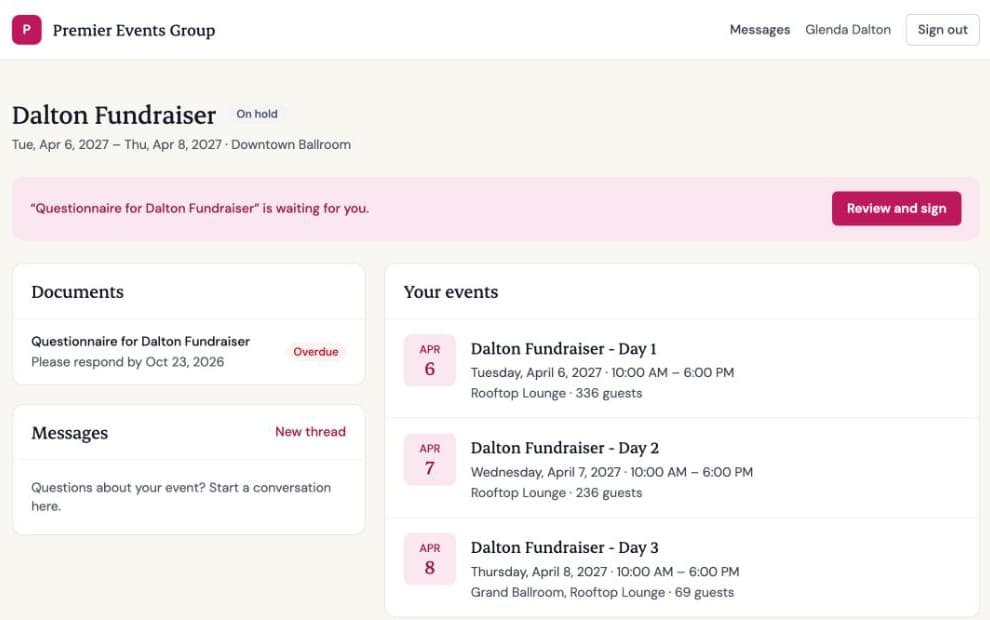
Opening the document
- Select Review and sign (or View document) in your venue's email, or open your booking in the portal and select the document under Documents.
- If you're asked to, sign in with your email. See Signing in to your venue's client portal.
- Read through the document. On a long one, use the section names at the top to jump around. The bar at the bottom shows the total (when there's pricing) and a Review and sign button that takes you to the signature.
Your venue can see when you've opened the document. Under Documents, anything still needing you shows Waiting for you, and the respond-by date if there is one.
Choosing options and add-ons
Some documents let you shape what you're buying:
- Add-ons: switch an extra on or off. It shows Added when it's included, and the total updates as you go.
- Packages: select Choose this one on the option you want. Only one can be chosen at a time.
- Questions and initials: some documents ask you to answer questions or add your initials next to a statement. Required questions have a red asterisk.
Your choices and answers are saved as you go, so you can leave and come back. Anything due at signing, such as a deposit, shows under the total as “due on signing”.
Signing
- Tick the box to agree to the document (for example, I have read and agree to the terms above).
- Read the Electronic records and signatures note, then tick the box to consent to signing electronically.
- Enter Your full name. The Email field shows the address your venue has for you and can't be changed here.
- In Signature, type your full name.
- Select Sign and accept.
If more than one person needs to sign, you'll see Signing as with your name, and a space for each of the other signers. The document is complete once everyone required has signed. Until then the page says who has signed and who it's waiting on.
After you sign
- Your choices and answers are locked. They can't be changed after the first signature.
- You'll get an email confirming your signature was recorded, and another once everyone has signed.
- Select Print / PDF at the top of the document to print it or save it as a PDF. Once a signing record is available, a Download signing evidence link appears at the top too.
- If there's a payment schedule, your venue may send you an invoice. See Paying your venue online.
Declining
If something isn't right, select Decline next to Sign and accept. You can tell your venue why (budget, dates, or anything else), then select Decline this followed by the document type. Your venue is told straight away and may send you an updated version. Only someone who has been asked to sign can decline.
Common questions
I made a mistake after signing. Can I change it?
Not yourself. Message your venue: they can make a new version of the document and send it to you. The old link will then say it has been replaced.
It says “The document changed since you opened it.”
Something in the document changed while you had it open. Reload the page, review the updated copy, and sign again.
It says the document has expired.
Some documents, such as proposals, have a respond-by date and expire after it. Ask your venue for an updated one.
I don't want to sign electronically.
Signing electronically is optional. Contact your venue before signing to talk about other options.
Was this article helpful?