Adding and managing contacts
How to add, edit and find contacts in Spacestack, what's on a contact's page, what the email status notes mean, and when a contact can be deleted.
A contact is a person you work with: a couple getting married, a company's event coordinator, a planner, a photographer. Contacts are shared across your whole organization, and everything you do with someone (bookings, tours, emails, tasks, notes) collects on their page.
Adding a contact
- Open Contacts in the sidebar and click New contact.
- Enter a First name. Everything else is optional: Last name, Email, Phone and Job title.
- Under Type, tick what this person is to you: Lead/Client, Vendor, Staff, Partner or Other. A contact can have more than one type, and at least one must stay ticked. New contacts start as Lead/Client.
- If you ticked Vendor, pick the services they offer under Vendor type.
- If you have more than one venue, choose a Venue, or leave it as No specific venue.
- Under Account, find the company or household they belong to, or add a new one. This is optional.
- Click Create contact. You land on their page.
You can also add someone without leaving what you're doing. On a booking's Contacts card, type their name in the search and choose the option at the bottom to add them as a new contact. A short form asks for name, email and phone, and adds them as a client.
Contacts also arrive on their own: when someone fills in your inquiry form, Spacestack adds them or matches them to an existing contact by email.
Finding contacts
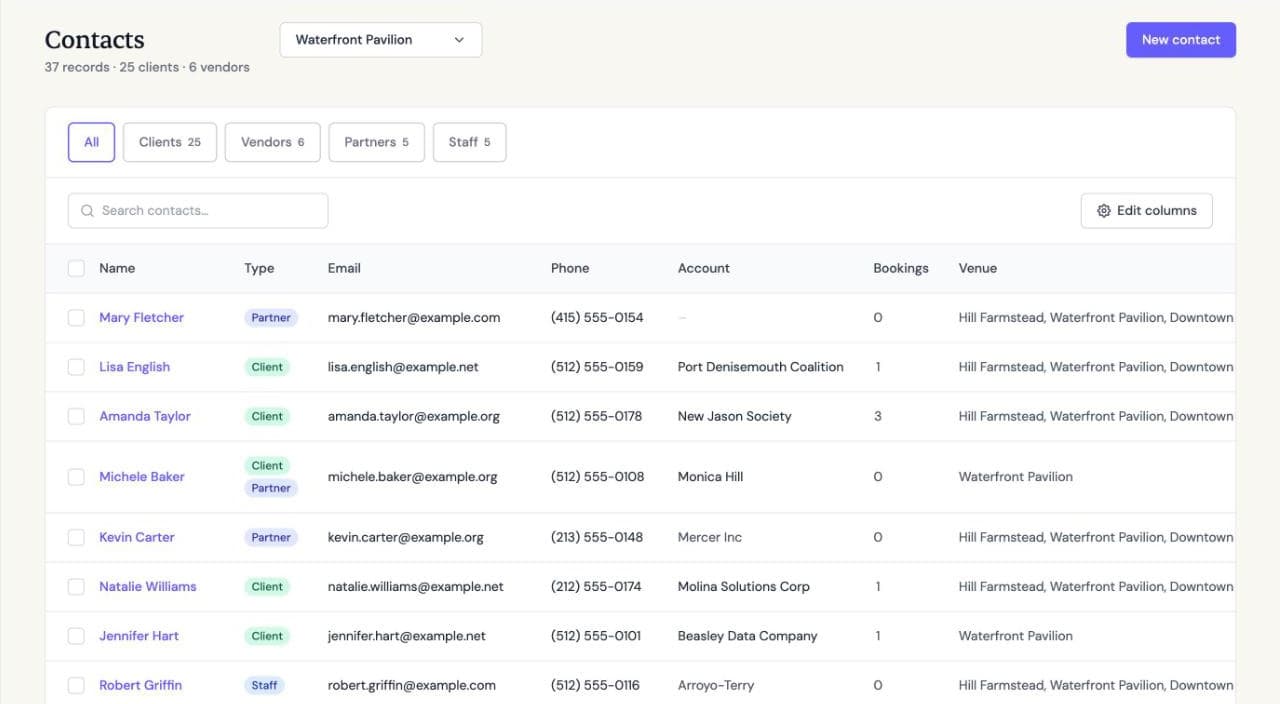
The Contacts list shows how many records you have, with counts of clients and vendors. Use the chips at the top (All, Clients, Vendors, Partners, Staff, Other) to filter by type, and Search contacts… to search by name, email or company. Click a column heading to sort. Edit columns lets you choose and reorder the columns you see; your layout is saved for you.
If you have more than one venue, the list follows the venue selector at the top of the page. Choose All venues to see everyone. A contact opened from a link or a booking always loads, whichever venue is selected.
What's on a contact's page
The card on the left shows their name and types, when they were added, and two figures: Bookings (with how many are still open) and Won revenue (with what's still in your pipeline). Below that are their email, phone and title, their Account, the date of their Next tour and Last booking, any Vendor services, their address, and (with more than one venue) the Venues they're linked to. Your organization's custom fields for contacts appear underneath.
| Tab | What it shows |
|---|---|
| Bookings | Every booking they're on, with date, owner, deal value and status. New booking starts one with them already added. |
| Tours | Upcoming tours first, then earlier ones. Schedule tour books a new one for them. |
| Tasks | Open tasks linked to them, with completed ones folded away underneath. New task links a new task to them. |
| Notes | Notes written on this contact. |
| Activity | Everything that happened with them, their bookings and their tours. |
| Emails | Every conversation they're part of, on any booking or none. The count shows unread conversations. |
Editing a contact
Click the pencil icon (Edit contact) at the top of their card, change what you need, and click Save changes. To take someone out of an account, clear the account field and save. Custom fields are edited right on the page and save as you go.
Email status notes
Next to a contact's email address, Spacestack may show a small colored note. Hover over it for the details.
| Note | What it means |
|---|---|
| Email bounced | Emails to this address couldn't be delivered. Check the address with them. |
| Marked as spam | They reported one of your emails as spam. |
| Off automatic reminders | They used the link in a reminder to stop automatic reminders. Emails your team writes still reach them. |
These notes don't block anything on their own; they're there so you know. See Email delivery, bounces and unsubscribes for what to do about each.
Deleting a contact
Owners and admins can delete a contact from the trash icon on their card, or several at once by ticking rows in the list and clicking Delete. Only a contact with no history can be deleted: nobody who is on a booking or has tours, invoices billed to them, signed documents, email threads, notes, tasks or other entries on their timeline. That covers typos, test entries and duplicates nobody has used.
Common questions
Can I delete a contact who was on a booking?
No. A contact with history (bookings, tours, invoices, signed documents, emails, notes or tasks) is kept, because deleting them would erase that history. The message tells you exactly what they're part of.
Why doesn't someone show in my Contacts list?
If you have more than one venue, the list shows the venue selected at the top. Switch to All venues. Also check the type chips and the search box aren't narrowing the list.
Can two contacts share an email address?
No. Each address belongs to one contact in your organization. If a couple shares an inbox, give one of them the email and leave the other's blank, or use each person's own address.
Can viewers add or edit contacts?
No. Viewers can see every contact but can't create, edit or delete them.
Was this article helpful?