Adding team members
Invite teammates to Spacestack, choose their role, resend or cancel invitations, change roles, and remove someone while handing their open work to a colleague.
Everyone on your team gets their own login, and every plan includes unlimited team members. You invite people by email from Settings, then Team, and choose a role for each. Staff and viewers can see the team list but can't invite or manage anyone.
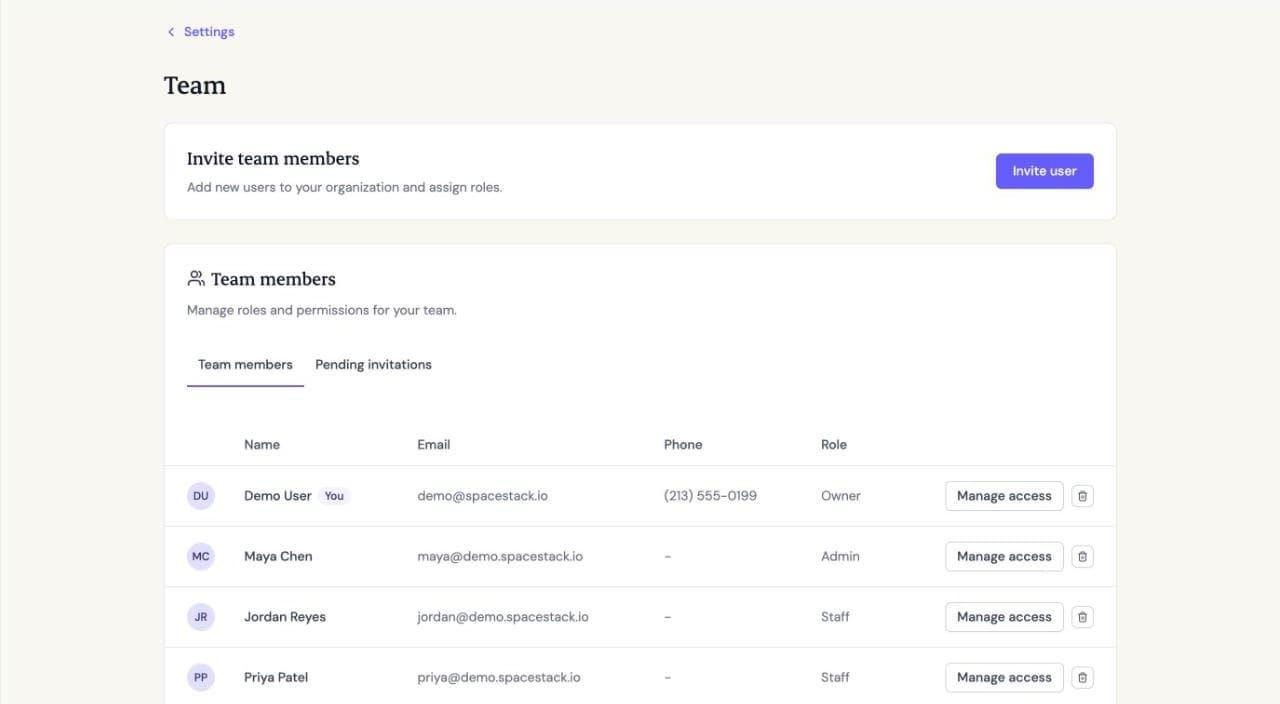
Invite someone
- Go to Settings, then Team.
- Select Invite user.
- Enter their Email address.
- Choose a role: Owner, Admin, Staff or Viewer. Admin is selected to start with. See Roles and permissions.
- Select Send.
They get an email with a link to join. Invitations expire after 7 days. Only owners can invite someone as an owner.
What your teammate does
The invitation link opens a page naming your organization, with three ways in:
- Sign up and join: create a password account. Their email is filled in from the invitation and can't be changed.
- Log in with existing account: for someone who already uses Spacestack, for example with another organization. They're added as soon as they sign in.
- Continue with Google: sign in with the Google account for the invited address.
People who join by invitation don't choose a plan; they use your organization's. If they already belonged to another organization, they switch between them from the profile menu at the top right.
Resend or cancel an invitation
- On Team, open the Pending invitations tab. It lists each invitation's email, role, who sent it and when it expires, or Expired once it has run out.
- Select Resend invitation to email it again (an expired one gets another 7 days), or Cancel invitation, then Confirm, to withdraw it.
An expired invitation stays on the list until it's resent, cancelled, or the person joins. It can't be resent once they've joined, or if a newer invitation to them is already pending.
Change someone's role
- On the Team members tab, find the person and select Manage access.
- Choose the new role and select Confirm.
Admins can change admins, staff and viewers. Only owners can make someone an owner or change an owner's role. You can lower your own role from your own row, but not raise it.
Remove someone and hand over their work
- On the Team members tab, select the trash icon on their row.
- If they still have active bookings, open tasks or upcoming tours, the window says how many. Under Hand that work to, choose a teammate, or leave it with them.
- Select Remove member.
Their access to your organization ends straight away. Past bookings, tasks and tours stay credited to them and show their name with “(former member)”. Their personal login isn't deleted, and they stay in any other organizations they belong to.
Common questions
Does adding people cost more?
No. Every plan includes unlimited team members.
My teammate didn't get the invitation. What now?
Ask them to check spam, then use Resend invitation on the Pending invitations tab. Make sure the address is right; if it isn't, cancel the invitation and send a new one.
How do I leave an organization myself?
On Settings, then Team, select the trash icon on your own row, then Leave team. If you're the only owner, make someone else an owner first.
Can someone be in more than one organization?
Yes. One login can belong to several organizations, with a different role in each. Switch from the profile menu.
Was this article helpful?